 GTO Fisher
Your first study session
Find a solution, follow the action, and understand one decision in Study.
Study lets you explore a poker decision from the full action line down to an exact two-card combination. This walkthrough starts with a library solution. You can also open a result from a Fisher conversation or build a custom postflop setup.
The instructions use the English interface labels. Guides are public; opening the Study workspace requires signing in. Available solutions and solve allowances depend on your account and the current catalog.
Choose a solution and a question
- Open Study from the product navigation.
- Select Change in the configuration bar to open the Solutions library. Filter the list and select a solution row.
- Check the format, player count, stack depth, rake, and preflop assumptions. Use the preflop guide if you need help choosing.
- Pick one question, such as how the big blind responds to a button open. Follow that action rather than browsing several unrelated spots at once.
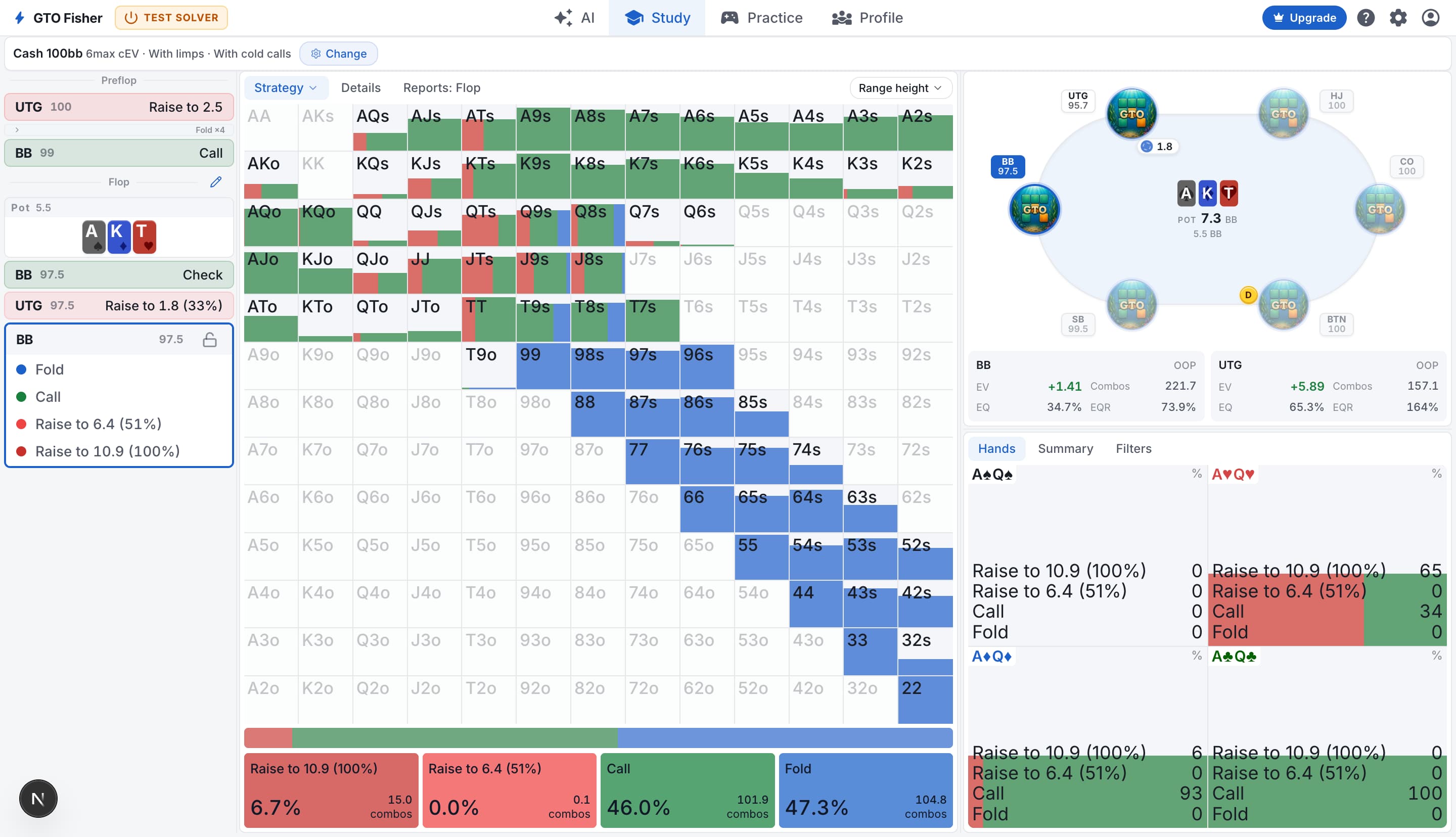
The configuration bar tells you which solution you loaded. The Action line tells you which decision you are viewing. The matrix belongs to the player acting at that decision, which may not be the seat you think of as your own.
Follow the action through the workspace
Choose actions in the action line to advance the hand. Select an earlier decision to inspect it again; choosing a different action there creates a different continuation. Recheck the displayed board and player after changing branches.
When a street closes with two players remaining, select the flop, turn, or river cards in the board selector and choose Confirm. You can remove a selected card, clear the selection, or use the random-card control. Turn and river selection excludes cards already on the board.
Postflop solving is heads-up only. A line that would reach a three-way or larger flop needs a different action sequence. If Study warns that a line is rarely used in GTO, treat the resulting strategy with extra care: very little range may reach that node.
On desktop, the action line, main strategy area, and table/hand-details area sit alongside one another. On a phone, the action line runs horizontally and Table is a separate main tab. Scroll the tab row if a label is out of view. Tap a hand to select it; desktop hovering provides a temporary preview.
Read one decision in three passes
- Whole range: read the action frequencies below the matrix. Which actions does the range use most?
- One hand: select a matrix cell and inspect Hands in the detail panel. Check the exact suits and action values, not just the starting-hand label.
- Both players: open the main Details tab for range matrices and comparison charts. This is different from the hand-details panel's Hands, Summary, Filters, and postflop Blockers tabs.
The active Strategy tab also has a display menu. Select it again to choose Strategy + EV, EV, EQ, EQR, Range, or Suit when those views are available. Read ranges, frequencies, and EV explains the differences.
Use Ask Fisher for an explanation tied to the current spot. For a specific chart, add its reference in the composer before asking. See Ask Fisher about a Study view.
Choose your next task
Continue with the guide that matches your question:
- Build a different spot: custom solves, range editing and import/export, or bet and raise sizes.
- Understand the result: range comparison, strategy clustering, or Blockers.
- Test an opponent model: player and pool profiles, nodelocking, then strategy comparison.
Finish by noting the spot, the pattern you found, and the assumption most likely to change the answer. If you want to practice that idea, choose a relevant exercise in Practice; this does not require turning every study session into a custom training plan.